EXCEL AND LISTS
Automate Excel: how to choose between formula, Power Query, macro and office helper
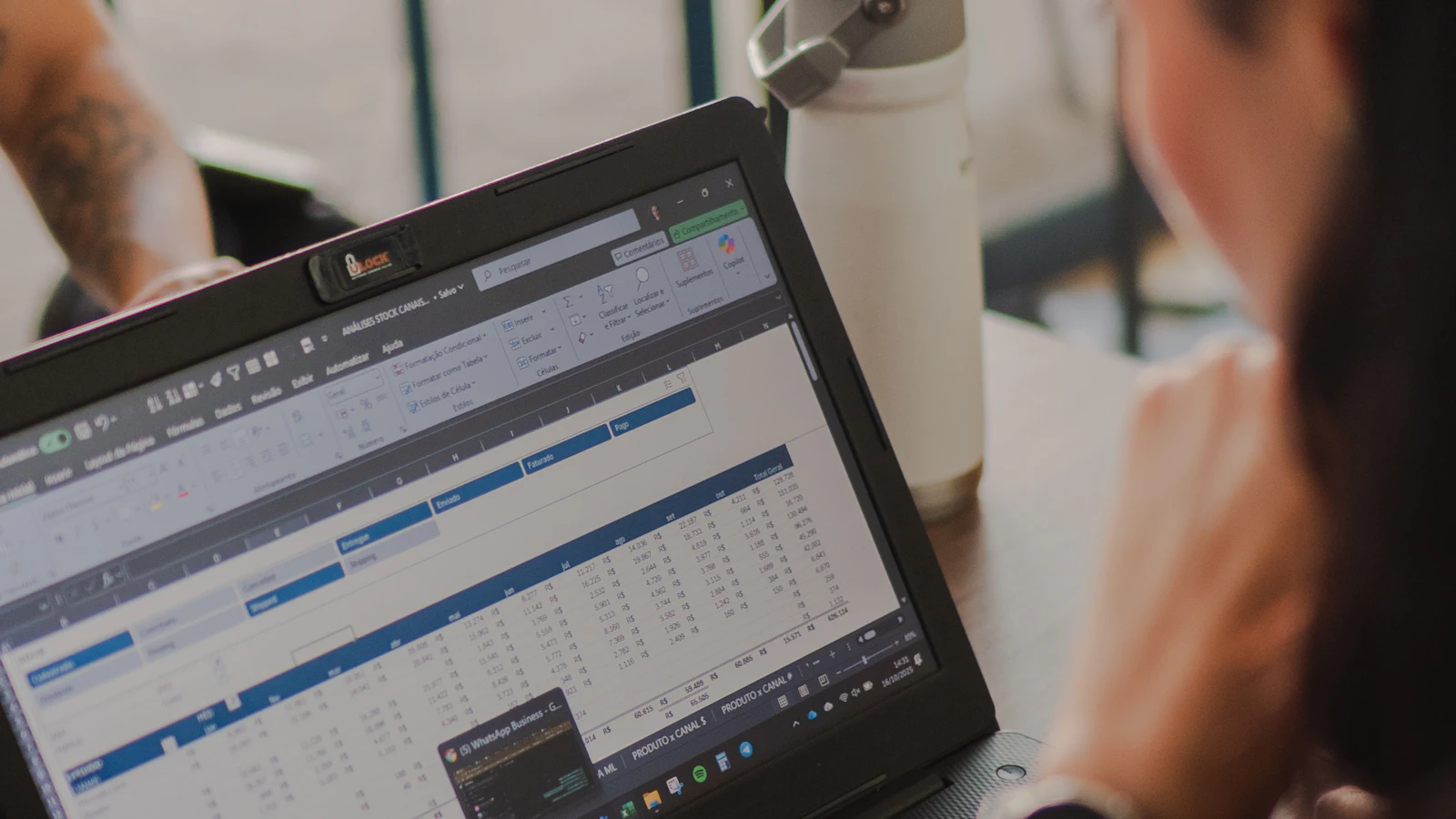
Monday morning, the same file as every week. Copy the columns, drag VLOOKUP down, highlight the differences in yellow, email the result. What stays is the nagging doubt whether every row was really caught this time. And the macro that was supposed to help is understood by one colleague, who happens to be on holiday. You want to automate Excel but are not sure where to start.
It costs more than an hour on Monday. A missed price or a formula that stops at row 500 often surfaces weeks later, when fixing it takes far more effort.
This article shows which of four tools fits your task: a formula, Power Query, a macro or Office Script, or a custom office helper. For each one you get versions, licences and limits, so you can pick the simplest solution that holds up over time.
In short: how to automate Excel
- Formula
When values within one file need to be looked up, compared or calculated. Example: putting old and new prices side by side with XLOOKUP.
- Power Query
When data is regularly loaded from files or folders, cleaned and combined. One click on Refresh All repeats every step.
- Macro or Office Script
When actions inside Excel should run by themselves: formatting, creating sheets, saving files, producing reports.
- Office helper
When the task goes beyond Excel: input by email, handover to your ERP or accounting software, exceptions that go to a specific person, and a process that runs reliably without anyone having to remember it.
The rule of thumb: start with the simplest level that fully solves your task. Each higher level can do more but also needs more looking after. Reach for a macro too early and you often just trade weekly manual work for a new dependency.
Level 1: when is a formula enough?
A good formula already solves many recurring tasks. XLOOKUP finds a value, such as an item number, in another list and returns the matching price. Unlike VLOOKUP, XLOOKUP needs no fixed column number, looks for an exact match by default and can return a text when nothing is found. VLOOKUP uses approximate match unless you add FALSE as the last argument, and on unsorted lists that quietly returns wrong hits.
An example: =XLOOKUP(A2,PriceList!A:A,PriceList!C:C,"missing") fetches the price for the item number in A2 from the price list and writes "missing" if the number is not there. In German Excel the function is called XVERWEIS and uses semicolons. According to Microsoft, XLOOKUP is available in Microsoft 365, Excel 2021 and Excel 2024, on Windows and Mac. Excel 2019 and 2016 do not have it, so use VLOOKUP with FALSE or INDEX with MATCH there.
For a step by step guide to merging two lists on a key column, see how to match Excel lists.
Limits: formulas only work with data that is already in the file, so someone still has to paste the new supplier list in, and that pasting is where most mistakes happen. Formulas do not send emails, save files or transfer anything to other programs.
Level 2: automate Excel without VBA, using Power Query
Power Query is a tool in Excel that loads and reshapes data without programming. You find it on the Data tab in the Get & Transform Data group. Every step you take is saved: renaming a column, removing empty rows, setting a data type, merging two tables. Next time you click Refresh All, and Excel repeats all the steps with the new data. An hour of copying becomes one click, and the result is produced the same way every time.
- Combine a folder: join all monthly files in a folder into one table. If you only need this now and then, our free Merge Excel files tool stacks several files without a query and matches columns by their heading.
- Clean up: treat item numbers as text so leading zeros stay, remove spaces, give columns consistent names.
- Compare: merge two lists on a key column and find rows that only exist in one of them. More in how to find missing records.
According to Microsoft, Power Query is available in Excel for Windows from Excel 2016 and in Microsoft 365, in Excel for the web and in Excel for Mac with Microsoft 365. Excel 2016 and 2019 for Mac do not have it. On the Mac and in the browser, not every data source from the Windows version is available either; in the browser, for example, Power Query loads files from OneDrive or SharePoint. Check this before you build a query for the whole team.
Limits: Power Query reads data but does not write it back to other programs. A refresh only runs while the file is open in Excel: on a click, when the file opens or at fixed intervals. And if a supplier suddenly renames its columns, the query stops with an error and needs adjusting. That is annoying, but better than a result that is quietly wrong.
Level 3: macro or Office Script, what is the difference?
A macro is a small program in Excel that repeats actions. Classic macros are written in VBA, the programming language of Microsoft Office. With the macro recorder you record your clicks and play them back later without writing code. Anything beyond simple click sequences means someone has to edit the code. That saves a lot of manual work, as long as the person who understands the code is around.
VBA macros: powerful but tied to the desktop
VBA runs in Excel for Windows and Mac, not in Excel in the browser, and needs no separate licence. According to Microsoft, macros have the same permissions as Excel itself and therefore full access to the computer. That is exactly why attackers like to abuse them. Since 2022, the Microsoft 365 apps on Windows block macros in files from the internet by default, such as email attachments or downloads. Instead of the Enable Content button, users see a Security Risk banner. Files you trust can be released by your IT, for example through trusted locations or signed macros. Workbooks with macros are saved as .xlsm.
Office Scripts: why is the Automate tab missing?
Office Scripts are the newer option. You find them on the Automate tab. You record by clicking here too, and the code behind it is TypeScript. Scripts run in Excel for the web, Windows and Mac and can be started on a schedule through Power Automate, even without anyone opening Excel. They can only access the workbook, not the computer.
If the Automate tab is missing, it is usually the licence: according to Microsoft, Office Scripts need a Microsoft 365 business or education subscription, OneDrive for Business and, on Windows, Excel version 2210 or later. One-time purchase versions without a subscription do not have them, and personal and family plans only get a preview through the Microsoft 365 Insider program. If the licence is right, your IT has often switched the feature off. In Excel for the web, cookie settings sometimes hide the tab.

Limits: macros and scripts break when the layout of the file changes. Error handling is often missing, so the macro simply carries on with wrong data. And often only one person in the company understands what the code does. When they are on holiday or have left, the process stops, and nobody dares to change anything.
The four levels compared
| Criterion | Formula | Power Query | Macro (VBA) | Office Script | Office helper |
|---|---|---|---|---|---|
| Typical task | Look up, compare, calculate | Load, clean and combine files | Actions in Excel, producing reports | Actions in Excel, also on a schedule | Process across several programs with review steps |
| Coding skills | None | None to few | Record without, edit with VBA | Record without, edit with TypeScript | None, it is built for you |
| Available in | All versions, XLOOKUP from Excel 2021 and in Microsoft 365 | Windows from Excel 2016, web, Mac with Microsoft 365 | Excel for Windows and Mac, not in the browser | Web, Windows, Mac with a Microsoft 365 business licence | Independent of the Excel version |
| Runs without a click | Recalculates on changes | Only in an open file, on opening or at intervals | No, someone starts it in Excel | Yes, through Power Automate | Yes, on a schedule or when input arrives |
| Email, ERP, accounting | No | Read only | Possible but laborious | Through Power Automate | Yes, through interfaces and imports |
| Maintenance | Low | Low to medium | Often depends on one person | Medium | Documented and agreed |
Example: the weekly supplier price list
To spot price changes between two versions of a price list reliably, read how to compare supplier price lists. If you would rather not build the levels at all: our free Excel comparison shows new, missing and changed rows between two lists, and Compare price lists shows every price change in percent. Both run in your browser and your files are not uploaded.
What are the most common mistakes when automating Excel?
- Starting with a macro. A formula or Power Query is often enough, and both are easier to understand and maintain.
- VLOOKUP without FALSE and with a fixed column number. Without FALSE, VLOOKUP only matches approximately. If someone inserts a column, the formula quietly pulls values from the wrong one. XLOOKUP or INDEX with MATCH is more robust.
- Ranges instead of tables. Formulas and queries miss new rows if the data is not formatted as a table.
- Not testing special cases. Empty rows, item numbers with leading zeros, numbers stored as text: this is exactly where automations break.
- No documentation. Write down in two or three sentences what the file does, where the data comes from and who looks after it. Then someone else can step in during the holidays.
- Enabling macros from attachments. Only enable macros in files whose origin you know. If in doubt, ask your IT.
When is an office helper better than a macro?
An office helper is a small, custom program that takes over exactly one recurring task. It uses your existing programs, interfaces and imports. Unclear cases go to your team, who check and approve the results. You stay in control, only the routine goes away. It is worth it above all when:
- the data arrives by email or as a PDF rather than already sitting in Excel,
- the result has to go into another program, such as your ERP or accounting software like BMD or RZL (Austria) or DATEV (Germany),
- exceptions should land with a specific person instead of slipping through,
- the process has to run even when the person who knows the macro is away,
- your IT restricts macros for security reasons.
What does it cost to leave things as they are? A simple calculation with assumed values: one hour every Monday, 46 working weeks a year and an internal cost of €38 per hour including overheads come to 46 hours and about €1,750 a year. Errors, follow up questions and holiday cover are not included. Run your own numbers in the office work cost calculator. For one hour a week, a formula or Power Query is often enough. From several hours a week, or when mistakes are expensive, an office helper is worth a look; see our article on the payback of automation. What this means for lists and price comparisons is shown on our page on automating Excel work.
Which level fits your task can often be seen from a short description. In the workflow check, describe which files you work on, how often, and who depends on them. Within 1–2 working days you get a personal, free assessment: formula, Power Query, macro or office helper. For an office helper we quote a fixed price from €1,990 excl. VAT, and small projects are usually done in 3–7 days once the use case is agreed. Only the quote you accept is binding.
Sources and further reading
- Microsoft Support: XVERWEIS (XLOOKUP), Syntax und Verfügbarkeit
- Microsoft Support: SVERWEIS (VLOOKUP), genaue und ungefähre Übereinstimmung
- Microsoft Support: Power Query in Excel (Abrufen und Transformieren)
- Microsoft Support: Power Query-Datenquellen in Excel-Versionen (Windows, Mac, Web)
- Microsoft Support: Aktualisieren einer externen Datenverbindung (beim Öffnen, in Intervallen)